
In my Sitecore journey, I need to create a custom dropdown field, also known as a select list or picker. If that’s what you’re looking for, you’re in the right place. In this blog post, I’ll walk you through the process of adding a dropdown list to the Sitecore admin interface, complete with options that don’t originate from Sitecore itself.
Thankfully, achieving this is a easy task. We’ll begin by developing a new custom field type, then seamlessly integrate it into Sitecore’s field types within the core database. Finally, we’ll explore how to use it in your templates.
Building Custom Field Type Code
To get started, let’s build the code for your custom field type. Here are the steps:
- Create a Class Library: Whether you opt for an existing project or create a new one, select the class library where your custom field type code will reside. For this example, I’ve chosen to name my project “TechSolutionHub.Sitecore.FieldTypes.”
- Include a Reference Sitecore.Kernel: Make sure to include a reference to the Sitecore.Kernel assembly. You can easily acquire this reference from the Sitecore NuGet.
- Create a Class for Custom Field Type: Create a new class within your project, and give it a meaningful name. For instance, “CustomDropdown” works well.
- Implement the Custom Field Type: Add the following code to your custom field class, ensuring you replace the sample options with your logic for fetching the dropdown values:
using Sitecore.Web.UI.HtmlControls;

namespace TechSolutionHub.Sitecore.FieldTypes
{
    public class CustomDropdown : Control
    {
        protected override void DoRender(System.Web.UI.HtmlTextWriter output)
        {
            output.Write("<select>");
            output.Write("<option></option>");

            string s;
            if (base.Value == "1")
                s = "selected";
            else
                s = "";
            output.Write("<option value=\"1\" " + s + ">Gustavo</option>");

            if (base.Value == "2")
                s = "selected";
            else
                s = "";
            output.Write("<option value=\"2\" " + s + ">Delfino</option>");

            output.Write("</select>");

            RenderChildren(output);
        }
    }
}
Publish
To implement this on site, follow these steps:
- Log in -> Control Panel -> Desktop and switch to the core database.
- Content Editor -> Within the tree structure, proceed to “/sitecore/system/Field types/List Types/”.
- Generate a new item using the type “/sitecore/templates/System/Templates/Template field type”.
- Fill in the assembly and class fields with the specific values corresponding to the class you’ve recently created. In my case, this involves:

Now, you have the option to populate the control field instead, but this involves the creation of a configuration file. Unless you have a specific need for that, it’s simpler to proceed with the assembly and class.
Switch to the master database, and begin crafting a template utilizing your freshly created field type. Here’s the template I’ve prepared:
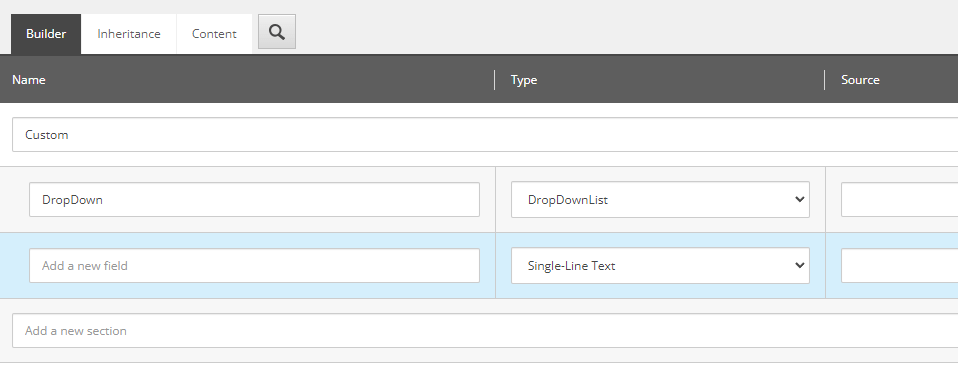
Create a page, and you will find a dropdown menu populated with the values retrieved from your custom class.

Good coding!

 𝘛𝘦𝘤𝘩 𝘚𝘰𝘭𝘶𝘵𝘪𝘰𝘯 𝘏𝘶𝘣
Deixe um comentário